Frequently Asked Question
How to Switch Out of S Mode in Windows 10 and Windows 11 to Install Plustek Drivers?
Last Updated 2 years ago
Original Link: https://plustek.com/content/en/faq/remove-s-mode.php
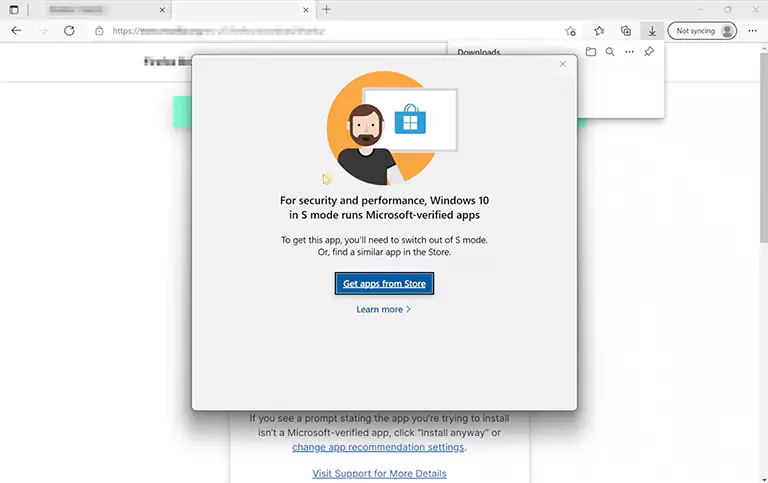
For Plustek scanner users operating on Windows 10 or Windows 11 S Mode, you may find that you're unable to install the necessary Plustek scanning software or other applications critical for your scanning needs. S Mode is designed for security and performance by restricting apps to those available in the Microsoft Store. To fully utilize your Plustek scanner, you may need to switch out of S Mode.
Windows 11
Windows 10
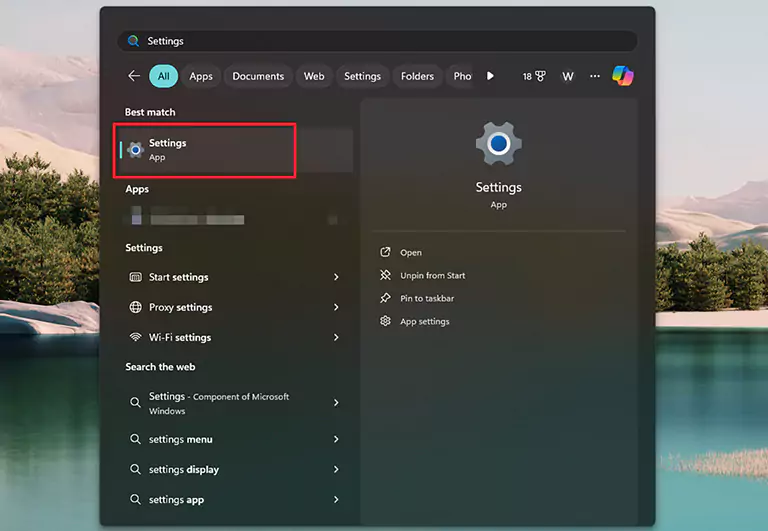
Open Settings: Press the Start button and select Settings.
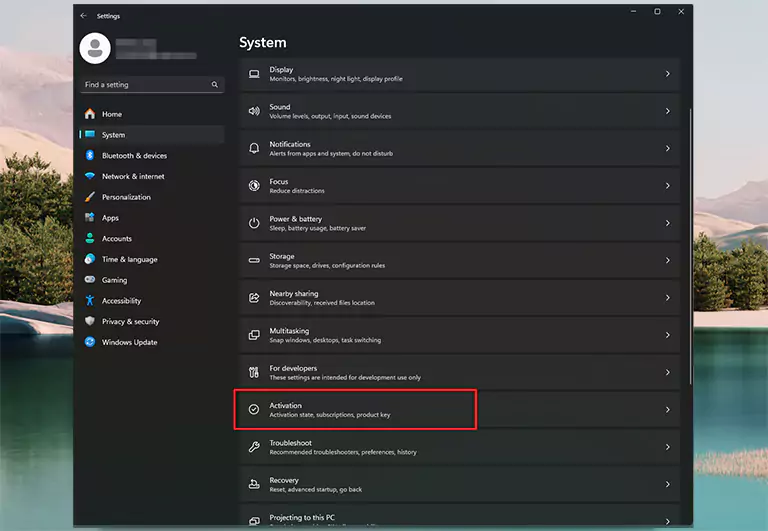
Go to Activation: Choose "System" > "Activation" from the sidebar.
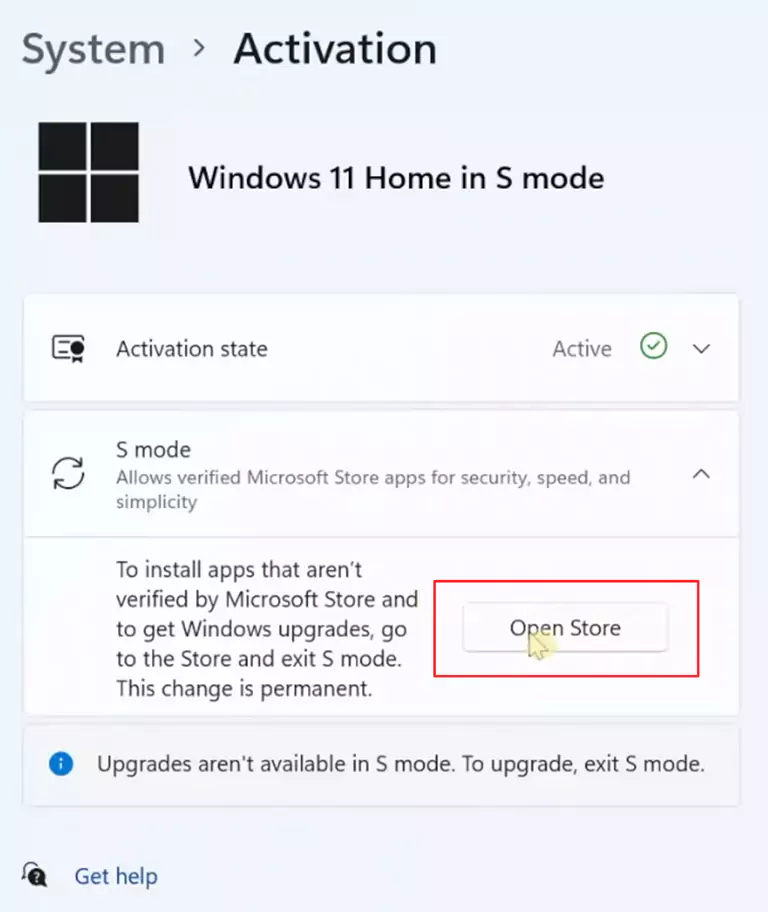
Leave S Mode: Find "Switch to Windows 11 Home" or "Switch to Windows 11 Pro" and select "Go to the Store."
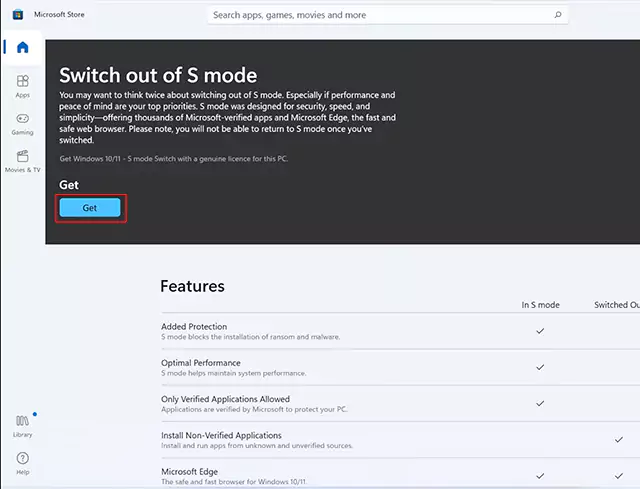
Complete the Switch: On the Microsoft Store page, click "Get." A confirmation will appear once the process is complete.
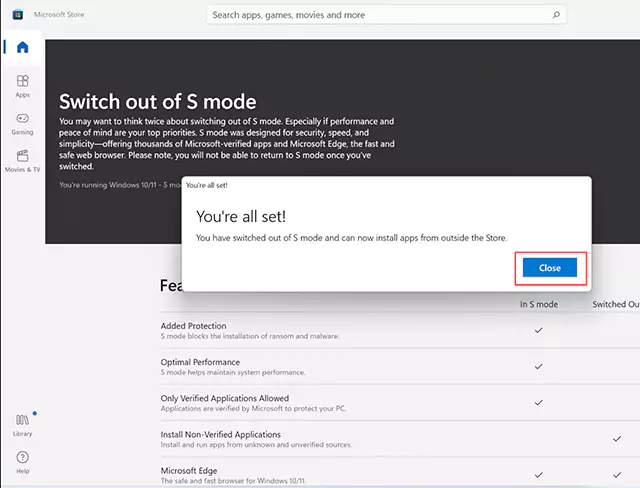
After Switching Out of S Mode
After switching, you must download and install the Plustek drivers from the official website. Follow the installation instructions provided with the drivers for optimal scanner functionality. Download Plustek Drivers Click Here