Frequently Asked Question

How to install drivers and SilverFast 8 when I don't have a CD-ROM?
Last Updated 2 years ago

For user without a CD/DVD drive, please follow the steps below to install driver and SilverFast 8, then unlock SilverFast 8 without CD/DVD drive.

image
Windows

Step 1. Install driver

OpticFilm 8100: Download
OpticFilm 8200i SE: Download
OpticFilm 8200i Ai: Download

*Please note you have to unzip the file before you install the driver, click here to see how to unzip the file.


Step 2. Download and install SilverFast 8

OpticFilm 8100: Download
OpticFilm 8200i SE: Download
OpticFilm 8200i Ai: Download


image
Mac

Download and install Silverfast 8: (All in One Driver Included)

OpticFilm 8100: Download
OpticFilm 8200i SE: Download
OpticFilm 8200i Ai: Download


Unlock SilverFast 8 without CD/DVD drive

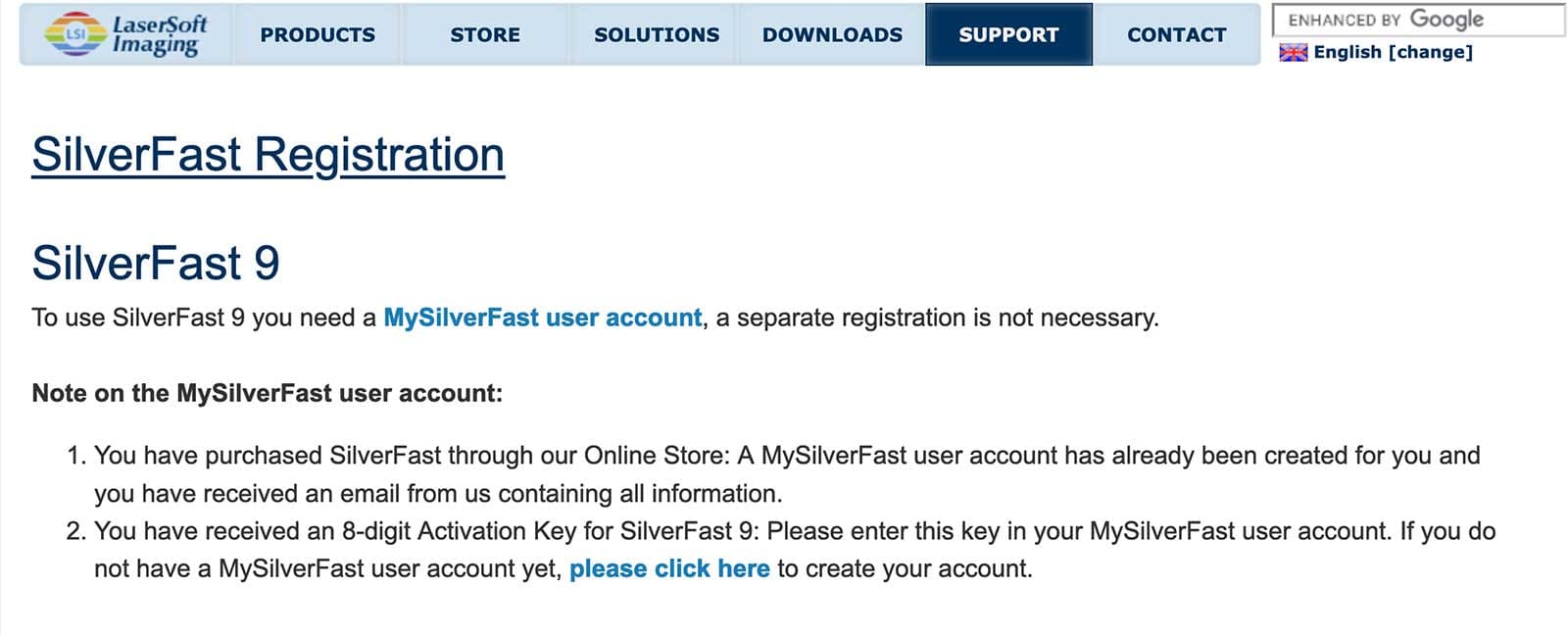
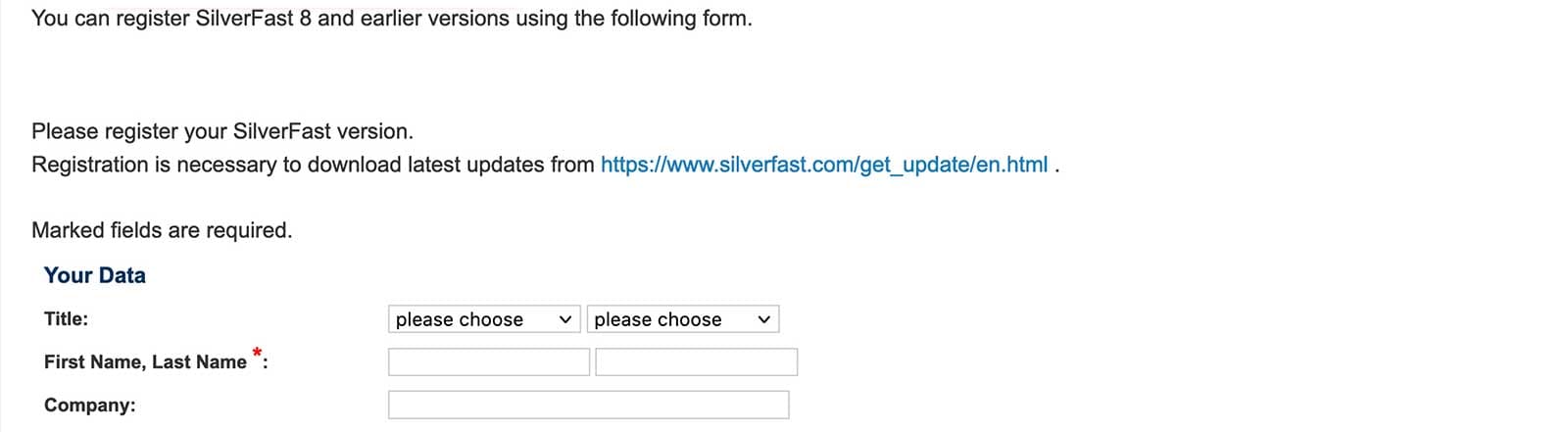
1. Register your SilverFast 8 software :

*Please register SilverFast 8 or earlier version before upgrade

image
image
image

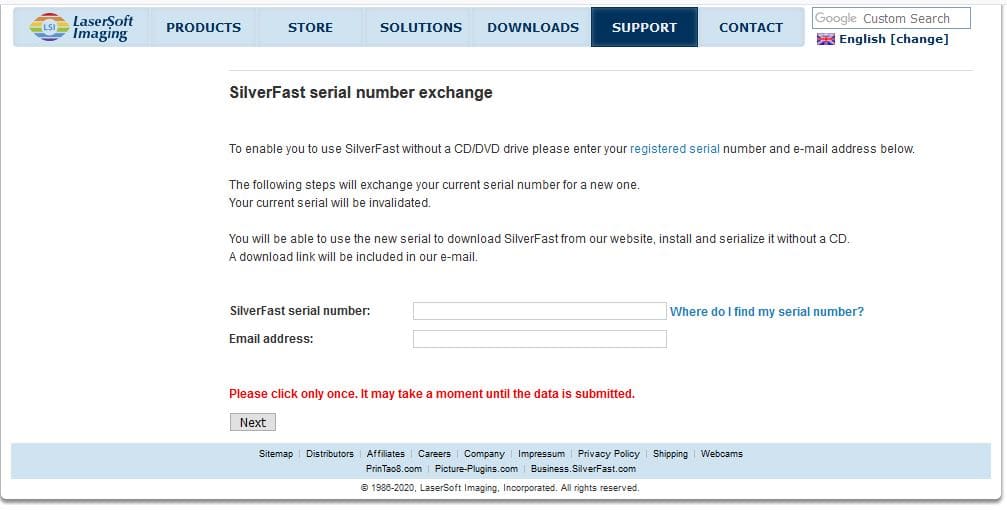
2. Go to this page : SilverFast 8 series number exchange and fill out this form:

image

3. Connect the scanner to your computer and turn it on.

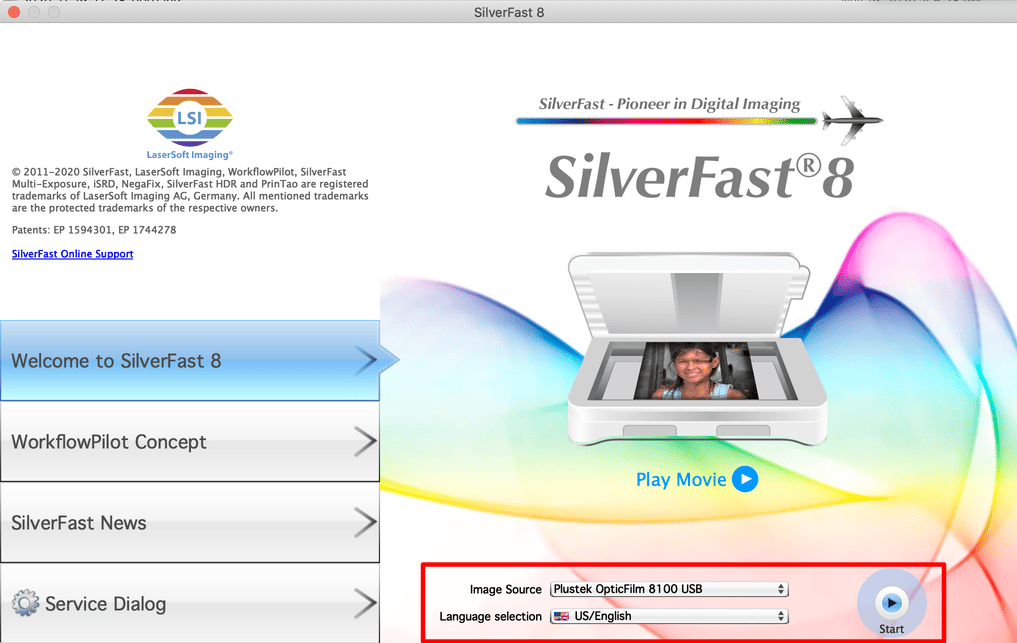
4. Start SilverFast 8

5. Select your scanner in the Image Source dropdown and choose the appropriate Language Selection, then click Start.

image

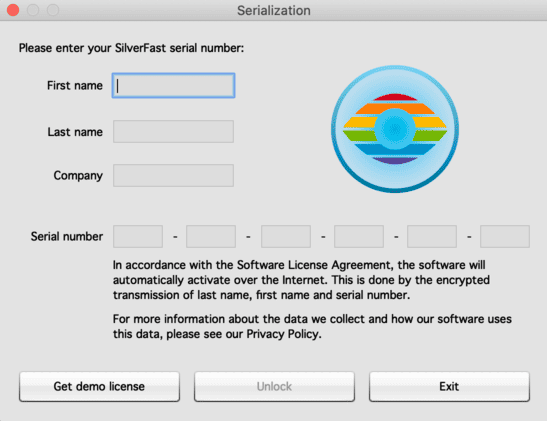
6. Enter your First name, Last name, Company Name and the Serial number (use the new one you’ve received from SilverFast 8 after you exchanged), then click Unlock.

*Please note that you have to enter the exact the same information as you registered, including space, upper and lower case letters.
image
Note:
A free SilverFast 9 upgrade is available if these two requirements are met:
  • You have purchased your scanner within the last two months.
  • You have to upload a copy or a photo of your invoice for verification.

Please visit the following page:
https://www.silverfast.com/silverfast-8-upgrade/?manufacturer=plustek

For users without a CD/DVD drive, please follow the steps below to install the driver and SilverFast, then unlock SilverFast without CD/DVD drive

Please Wait!

Please wait... it will take a second!